Introduction
Is your phone running out of space, showing storage warnings, or struggling to download new applications? Over time, smartphones accumulate downloaded files, large videos, duplicate photographs, temporary app data, and other content that can consume valuable storage.
The good news is that you do not necessarily need to purchase a cleaning application or upgrade your phone. Several free methods can help you identify unnecessary files, remove old downloads, organize photographs, and recover storage space.
However, cleaning a phone correctly requires understanding the difference between memory and storage. Deleting unnecessary files can free storage space, while repeatedly closing applications to clear RAM is usually unnecessary. Choosing the wrong cleaning option could also remove important photographs, documents, or application data.
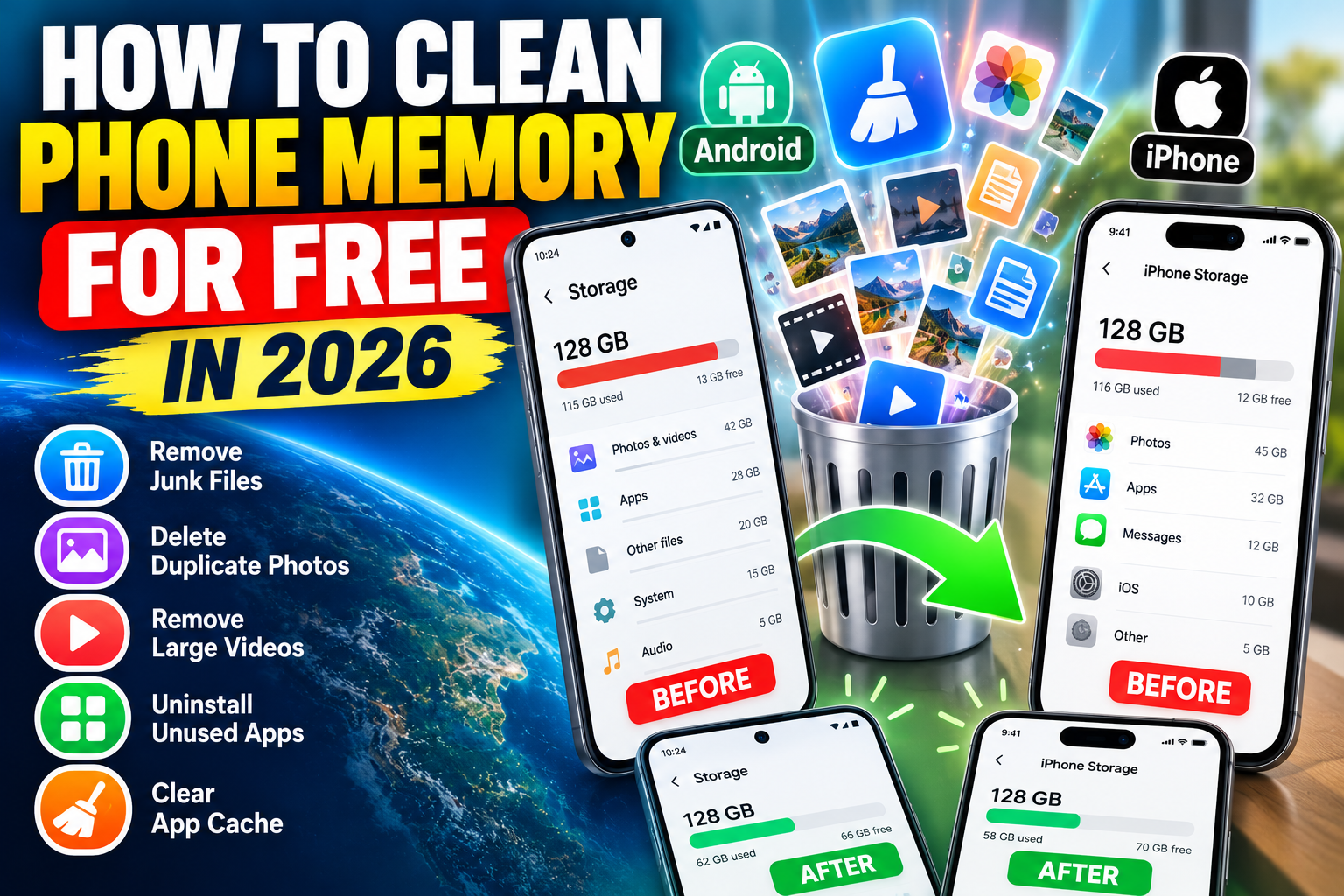
In this guide, IPOPANDIT.COM explains how to clean phone memory for free in 2026 using built-in smartphone settings, Files by Google, WhatsApp’s storage manager, and other practical methods. These steps can help Android and iPhone users maintain their devices without paying for features they may not need.
1. Understand the Difference Between RAM and Phone Storage
Before cleaning your phone, it is important to understand what is actually full.
Storage is where your phone keeps photographs, videos, applications, documents, downloads, and other files. When storage becomes nearly full, you may have trouble installing applications, downloading files, or recording new videos.
RAM, or random-access memory, is temporary working memory used by applications and the operating system while they run.
These are different resources, and they require different solutions.
For example, deleting an old video can free storage space. However, it does not directly increase the physical amount of RAM in your device.
Android also manages RAM automatically to keep applications available and help you switch between them efficiently. According to Android’s official memory-management documentation, having little unused RAM does not automatically mean your phone has a problem.
If your phone says storage is almost full, concentrate on removing unnecessary files. If an application is freezing or behaving unexpectedly, investigate that application rather than assuming that all memory needs to be cleared.
2. Free Up Storage Using Android Settings
Android provides built-in tools that show how much storage is being used and where the space is going. This is a sensible first step because it does not require installing an additional cleaner.
Step-by-step instructions
- Open Settings on your Android phone.
- Find and select Storage. The exact menu name may vary by manufacturer.
- Review the storage categories, such as applications, photographs, videos, documents, and system files.
- Identify categories containing files you no longer need.
- Open the relevant category and review its contents.
- Delete unwanted downloads, videos, or other files only after checking them carefully.
If applications occupy most of your storage, review which ones you actually use. Removing games or applications you no longer need can recover space.
Some Android phones also offer automatic storage-management features that can remove certain backed-up photographs or archive unused applications. Availability depends on the device and Android version.
Google provides additional instructions in its official Android storage guide.
Helpful tip: Start with large, unnecessary files rather than deleting everything that appears in a cleaning recommendation. A few unwanted videos may occupy more space than hundreds of small documents.
3. Use Files by Google to Clean Your Phone for Free
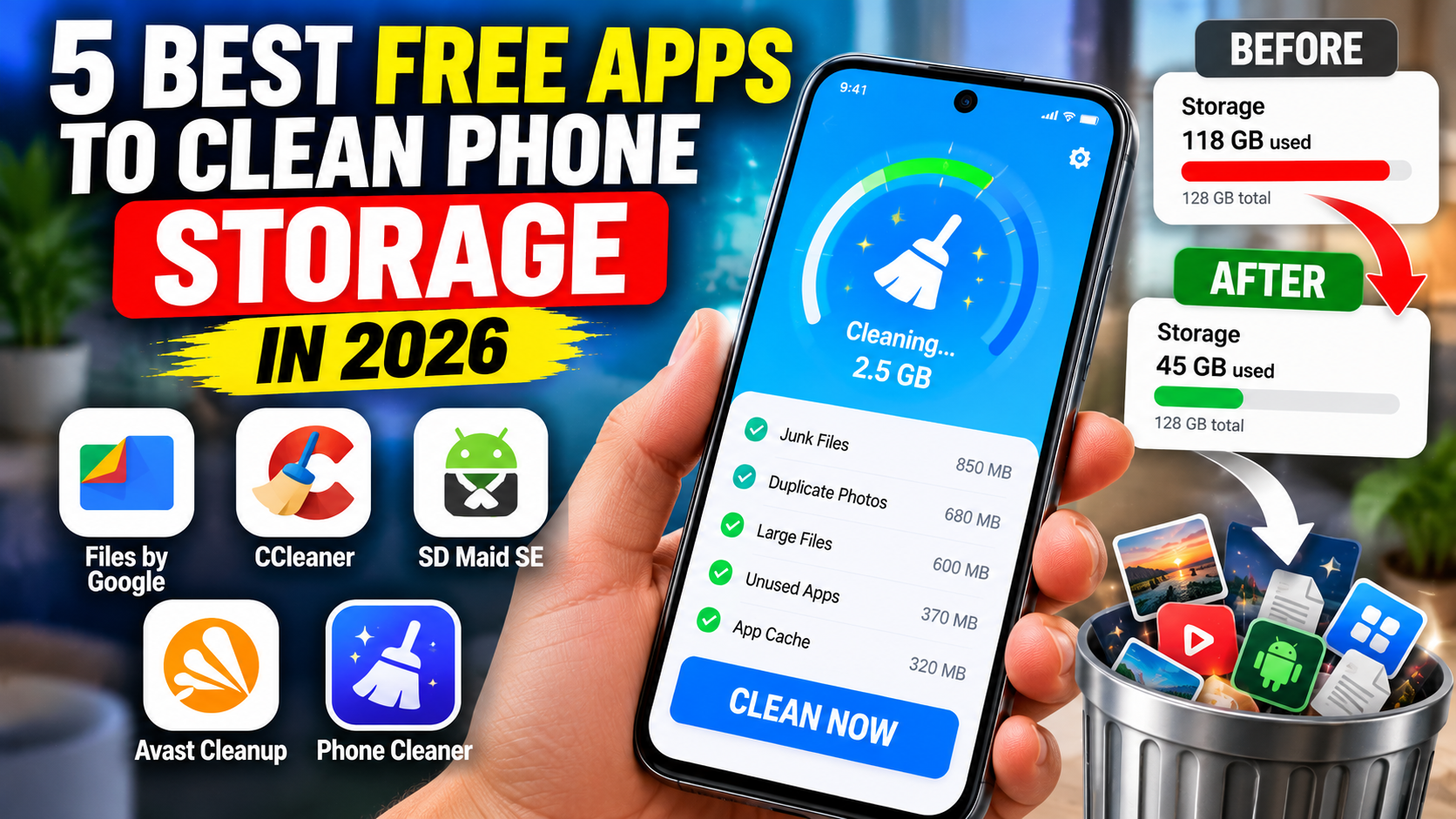
Files by Google is a free file-management application for supported Android devices. It offers cleaning recommendations that can help identify temporary files, duplicate files, screenshots, downloads, and applications you may no longer need.
You can find it on the official Google Play listing.
What can Files by Google do?
Remove junk files: The app can identify certain temporary files that are suitable for deletion.
Find duplicate files: Review duplicate copies and decide which ones you no longer need.
Identify large downloads: Browse downloaded videos, documents, and other files that consume storage.
Review unused applications: Find applications you might want to uninstall.
Manage files: Browse, search, move, copy, and organize supported files.
How to clean your phone with Files by Google
- Install Files by Google from Google Play.
- Open the application and select the Clean section.
- Review the suggested cleaning categories.
- Select a category, such as Junk files or Duplicate files.
- Examine the files listed before confirming deletion.
- Select the items you genuinely no longer need.
- Confirm the cleanup and check your available storage again.
Google explains these functions in its official Files by Google help guide.
Be careful with the Junk files option. Google notes that files deleted through this cleaning function are permanently removed rather than sent to Trash. Always review the selection before confirming.
Best for: Android users who want a straightforward way to free up storage without paying for a cleaning subscription.
4. Clear App Cache Without Deleting Important Data
Applications sometimes store temporary files to help images, pages, and other content load more quickly. Over time, cached data can occupy storage space.
On Android, clearing an application’s cache may free some storage, although the amount varies by app.
How to clear cache on Android
- Open Settings.
- Select Apps or Applications.
- Choose the application you want to review.
- Open Storage or Storage and cache.
- Tap Clear cache, if the option is available.
Repeat the process only for applications where it makes sense.
What is the difference between Clear Cache and Clear Storage?
This distinction is extremely important.
- Clear cache removes temporary files. Some content may need to load again the next time you open the application.
- Clear storage removes an application’s stored data and may delete settings, login information, downloaded content, and other information.
Do not select Clear storage simply because you want to free a little space. Check the application’s backup and recovery options before removing its data.
Google explains the distinction in its official Android storage guidance.
There is also no need to clear every application’s cache every day. Temporary files often serve a useful purpose, and applications may recreate them when needed.
5. Free Up Space Taken by WhatsApp
WhatsApp can occupy considerable storage because photographs, videos, voice notes, documents, and other media may accumulate across individual and group conversations.
Instead of deleting all your conversations, use WhatsApp’s built-in storage manager to identify which files take up the most space.
How to clean WhatsApp storage
- Open WhatsApp.
- Go to Settings or tap your profile picture, depending on your version.
- Select Storage and data.
- Open Manage storage.
- Review the storage usage shown for WhatsApp.
- Select a chat or category containing large files.
- Review the media and choose items you no longer need.
- Confirm deletion only after checking the selected files.
WhatsApp can help you identify large media files and review content by chat. You can also remove selected videos, photographs, or documents without deleting every message in the conversation.
Read the official WhatsApp storage-management guide for detailed instructions.
Important: Back up important conversations and media before performing a major cleanup. Deleting a file may remove it from WhatsApp, and separate copies may remain elsewhere on your phone. Confirm what you are deleting before proceeding.
6. Remove Unnecessary Photographs and Videos
Photographs and videos are often among the largest items stored on a smartphone, particularly if you record videos in high resolution.
Instead of deleting your entire gallery, review the files that consume the most space.
Practical steps
Open your gallery or photo-management application and look for long videos, duplicate photographs, old screenshots, and downloaded images you no longer need.
Review each category before deleting anything. Some similar photographs may capture different moments, even if an automated cleaner identifies them as duplicates or similar images.
If you use Google Photos or iCloud Photos, check that important pictures have been backed up successfully before removing local copies. Understand how synchronization works: deleting an image from a synced library may also remove it from other devices or the cloud library.
For iPhone users, Apple offers Optimize iPhone Storage when iCloud Photos is enabled. This feature can reduce the local storage required for photographs while keeping full-resolution originals in iCloud, subject to available cloud storage and synchronization.
You can read Apple’s official photo-storage guide.
Always verify your backup before deleting valuable memories.
7. Delete Old Downloads and Unused Applications
Another simple way to clean storage is to remove files and applications you no longer use.
Open your Downloads folder and review old PDF files, installation packages, documents, and media that have already served their purpose. Delete only files you recognize and no longer need.
Next, review your installed applications. Games, video-editing tools, offline maps, and streaming applications may store large amounts of downloaded content.
Before uninstalling an application, check whether it contains local documents or other data you want to preserve. Removing an app may also remove information stored inside it.
For applications that you use occasionally, consider whether the phone offers a supported archiving or offloading feature instead of immediately deleting everything.
These steps can be more effective than repeatedly running a generic cleaning application because they address the actual files and applications occupying space.
8. How to Clean Storage on an iPhone for Free
iPhone users do not need a third-party cleaning application to manage everyday storage. Apple’s built-in storage settings provide information about which applications and content use the most space.
Step-by-step instructions
- Open Settings.
- Select General.
- Tap iPhone Storage.
- Wait for the storage categories and app list to load.
- Review Apple’s recommendations and the storage used by each app.
- Remove downloaded files, unwanted media, or applications you no longer use.
You may also enable Offload Unused Apps if you want iOS to remove unused applications while retaining their documents and data, where supported.
To manage photographs, review your backup options and consider Optimize iPhone Storage if you use iCloud Photos. To remove large messaging attachments, inspect the relevant messaging application’s own storage settings.
Apple provides detailed instructions in its official iPhone storage guide.
Remember that local device storage and iCloud storage are separate. Purchasing more iCloud storage does not automatically increase the physical storage capacity of your iPhone, although compatible cloud features can help reduce the space used locally.
9. Should You Install a Phone-Cleaning App?
A dedicated cleaning application may be useful if it makes it easier to review duplicates, find large files, or organize downloads. However, it is not always necessary.
Android users can start with Files by Google and the phone’s built-in storage settings. CCleaner and other established cleaners offer additional tools, but their capabilities differ by platform and some features require payment.
If you consider a cleaning application, download it from an official source, review its permissions, and check which functions are actually free.
Avoid apps that promise dramatic performance improvements simply by clearing RAM. Closing applications repeatedly is not usually necessary, and no cleaner can guarantee that an older phone will perform like a new one.
Choose a tool because it helps solve a specific storage problem, not because its marketing promises instant speed improvements.
Frequently Asked Questions
How can I clean phone memory for free?
Start by checking your storage settings, deleting unnecessary downloads, reviewing photographs and videos, removing unused applications, and clearing selected app caches. Android users can also use Files by Google.
Which free application is best for cleaning Android storage?
Files by Google is a useful starting point because it provides cleaning suggestions and file-management tools without requiring a paid cleaning subscription for its core functions.
Is clearing cache safe?
Clearing an app’s cache generally removes temporary files, although some content may load more slowly afterward. Clearing an app’s storage is different and may remove its local data, settings, and login information.
How can I clean iPhone storage without an app?
Open Settings, select General, and then choose iPhone Storage. Review the recommendations, remove unneeded downloads, and offload applications you no longer use. Apple also provides tools for optimizing photo storage.
Does cleaning RAM make a phone faster?
Not necessarily. Android manages RAM automatically, and a low amount of unused RAM does not automatically indicate a performance problem. Investigate persistent app errors, insufficient storage, or outdated software instead of constantly closing applications.
Conclusion
Cleaning phone memory does not need to cost money. Android and iPhone both provide built-in tools for reviewing storage, removing unwanted files, and managing applications.
Android users can also use Files by Google to identify selected junk files, duplicates, downloads, and other unnecessary content. WhatsApp’s storage manager is particularly useful for reviewing large media files, while clearing an app’s cache may help free a smaller amount of space when necessary.
The safest approach is to understand what is occupying your storage, back up important content, and review files before deleting them. Avoid unnecessary cleaner subscriptions and do not confuse RAM management with storage cleanup.
At IPOPANDIT.COM, our goal is to help readers solve everyday technology problems with practical guidance and realistic expectations. With regular file reviews and sensible backup habits, you can keep your phone organized without spending money unnecessarily.