Introduction
Losing important photographs can be frustrating, especially when they capture family celebrations, holidays, personal milestones, or other memories that cannot easily be recreated. Pictures may disappear after accidental deletion, a memory card formatting error, a failed file transfer, or a problem with a phone’s storage.
Fortunately, recovering deleted photos is sometimes possible without paying for expensive software. Depending on your device and how the pictures were lost, you may be able to restore them through a built-in recovery folder, an existing cloud backup, or a free file recovery program.
However, not every application advertised as free offers unlimited recovery. Some provide free scanning but charge for particular recovery features, while others work only on computers or removable memory cards. Recovery success also depends on whether the original photo data remains accessible.
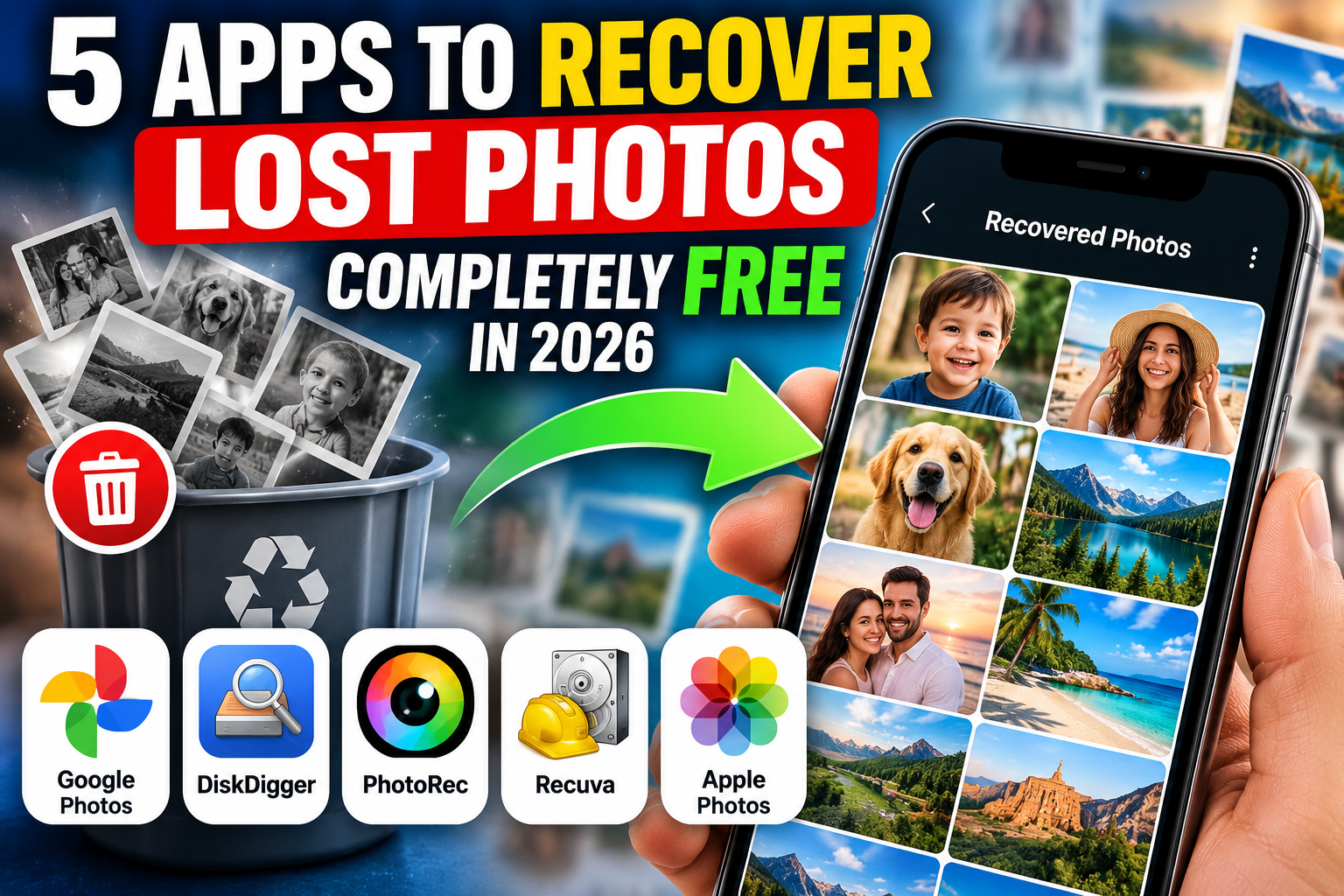
In this guide, IPOPANDIT.COM explores five free photo recovery options for Android, iPhone, Windows computers, and memory cards. We explain what each method can do, which limitations to expect, and how to protect your remaining photographs during recovery.
1. Google Photos: Restore Deleted Pictures from the Trash
Before downloading another application, check Google Photos. If your photographs were backed up to your Google account, or remain in the service’s Trash, you may be able to restore them without using separate recovery software.
Google Photos is available through its official website and supported mobile applications.
Main features
Recently deleted photos: Restore eligible pictures that are still in Trash.
Cloud photo library: Find photographs backed up from supported devices and folders.
Archive: Check whether a missing photograph was archived instead of deleted.
Cross-device access: View backed-up images from compatible devices signed in to the relevant account.
How to recover photos with Google Photos
- Open Google Photos on your phone or visit photos.google.com.
- Sign in to the Google account that contains your photographs.
- Open Collections and select Trash.
- Look for the deleted pictures.
- Select the photographs you want to restore.
- Tap Restore and confirm your selection.
According to Google’s current support information, photographs and videos remain in Trash for 30 days before permanent deletion. If an image was permanently deleted or Trash was emptied, Google Photos cannot restore it through this feature. See the official Google Photos recovery guide.
What if a photograph is missing?
Check the Archive and confirm that you are signed in to the correct Google account. If you use multiple devices, also review your backup settings to determine whether the photographs were uploaded successfully.
Remember that deleting an image in Google Photos can also delete it from synced devices. Before cleaning your gallery, make sure you understand how your backup and synchronization settings work.
Best for: Anyone who uses Google Photos and wants to restore recently deleted or backed-up photographs without paying for recovery software.
2. DiskDigger: A Free Photo Recovery Option for Android
DiskDigger is an Android application designed to search accessible storage for recoverable pictures. It can be worth trying when photographs have disappeared from your gallery and are not available in the usual deleted-items folder or cloud backup.
You can find the application on its official website or through its Google Play listing.
What does DiskDigger offer?
Basic photo scanning: The free Android version can scan accessible storage for image files.
Image previews: Review detected pictures before deciding which ones to save.
Recovery options: Save selected results to an available storage location or another supported destination.
Deeper scanning on rooted devices: Certain additional scanning capabilities are available when a supported Android device has root access.
Is DiskDigger completely free?
DiskDigger offers a free Android version focused on photo recovery. Its Pro version supports additional file types and features. Video recovery through the Android app requires a rooted device, according to the developer’s documentation.
There is also an important limitation for ordinary, non-rooted phones. DiskDigger may find lower-resolution cached or thumbnail images instead of the original full-resolution photographs. Its developer explains that rooting may provide deeper access but still does not guarantee that the originals can be recovered.
Read the official DiskDigger Android FAQ before relying on it for important files.
How to try DiskDigger
- Install the application from the official Google Play listing.
- Open DiskDigger and choose the available basic photo scan.
- Allow it to examine the accessible storage.
- Review the results and preview the pictures you recognize.
- Select the photographs you want to save.
- Choose a suitable recovery destination and verify the saved files.
Avoid rooting your phone merely to attempt photo recovery unless you understand the associated security and data-loss risks.
Best for: Android users who want to try a dedicated photo recovery application without immediately purchasing software.
3. PhotoRec: Completely Free Recovery Software for Memory Cards
PhotoRec is a free, open-source file recovery program developed by CGSecurity. Unlike mobile gallery applications, it is designed for computers and compatible storage devices, including SD cards, USB drives, hard drives, and other supported media.
It can be especially useful when photographs have been deleted from a camera memory card or when a storage device has been formatted or damaged at the file-system level.
You can download it from the official PhotoRec website.
Key features
Free and open source: PhotoRec is distributed under the GNU General Public License, without a paid recovery tier for its core functionality.
Photo and video recovery: It recognizes many image, video, document, and other file formats.
Multiple storage types: It supports compatible hard drives, removable memory cards, and USB storage devices.
Recovery from damaged file systems: Its file-signature scanning method can find files even when file-system information has been damaged.
How to use PhotoRec
- Stop using the affected memory card or drive.
- Download PhotoRec from the official CGSecurity website.
- Connect the card or drive to a computer using a suitable reader, if required.
- Run PhotoRec and select the correct storage device.
- Choose the appropriate partition and available scan options.
- Select a recovery destination on a different drive.
- Review the recovered photographs and open the files to check their condition.
PhotoRec is more technical than most smartphone applications. It may also recover files without their original filenames or folder structure, so you may need to sort the results manually.
CGSecurity specifically advises users not to write new files to the storage device they are trying to recover, because new data may overwrite the deleted photographs. See the official PhotoRec documentation.
Best for: Users who need a genuinely free recovery tool for photographs on SD cards, USB drives, and other compatible storage media.
4. Recuva: Free Photo Recovery for Windows
Recuva is a Windows file recovery program from Piriform, part of Gen Digital. Its free edition can help recover deleted files, including photographs, from supported computer drives, memory cards, and USB storage devices.
Unlike Google Photos or DiskDigger, Recuva is intended for computer-based recovery rather than scanning the internal storage of an ordinary Android or iPhone directly.
You can review the options through the official Recuva website.
What can Recuva recover?
Deleted photographs: Search supported storage devices for deleted image files.
Memory card files: Recover eligible photos from camera cards connected through a card reader.
Other file types: The utility can also search for supported documents, videos, and other files.
Scanning options: Available scan settings allow users to search for deleted files and inspect results.
How to recover photos using Recuva
- Download Recuva from its official website.
- Install and open the application on Windows.
- Connect the affected memory card or storage device.
- Select the appropriate file type and location when prompted.
- Run the scan and review the files found.
- Select the photographs you want to restore.
- Save the recovered files to a different storage device whenever possible.
Recuva offers a free edition, while its Professional edition provides additional features. Review the current edition comparison before assuming that every advanced function is free.
As with other recovery utilities, success is not guaranteed. The outcome depends on whether the deleted data remains accessible and whether new files have overwritten it.
Best for: Windows users who want a free recovery program for photographs stored on supported computer drives, USB devices, and memory cards.
5. Apple Photos: Recover Deleted Pictures on an iPhone
iPhone users should begin with Apple’s built-in Recently Deleted album rather than downloading a third-party recovery program.
When you delete a picture through the Photos application, it normally remains in Recently Deleted for a limited period. If the image is still there, you can restore it directly.
How to recover photos on an iPhone
- Open the Photos app.
- Find Recently Deleted under Utilities. Depending on your iOS version, you may need to open Collections first.
- Tap View Album and authenticate if requested.
- Select the photograph or photographs you want to recover.
- Tap Recover and confirm the action.
Apple states that eligible photos and videos remain in Recently Deleted for 30 days. After that, they are permanently deleted from the album and cannot be restored through this feature.
You can also sign in to iCloud Photos and check its Recently Deleted section.
See Apple’s official photo recovery instructions for the latest steps.
What if the pictures are no longer there?
Check your iCloud Photos library, other Apple devices, computer folders, shared libraries, and any existing backups. Be careful before restoring an older device backup, because doing so may affect newer information.
Do not assume that an app advertised as a free iPhone photo recovery solution can scan all internal storage and restore permanently erased files. Apple’s security architecture and encryption limit the access available to third-party applications.
Best for: iPhone and iPad users who want to restore recently deleted photographs without paying for an additional application.
Which Free Photo Recovery Method Should You Choose?
| Your situation | Best first option | Cost |
|---|---|---|
| Deleted photos in Google Photos | Google Photos Trash | Free |
| Missing pictures on Android | DiskDigger basic scan | Free version available |
| Photos deleted from an SD card | PhotoRec | Free and open source |
| Lost photos on a Windows computer | Recuva Free | Free edition available |
| Recently deleted iPhone pictures | Apple Photos Recently Deleted | Built-in and free |
The right choice depends on where the photos were stored. Start with built-in recovery features and backups before scanning a storage device with separate software.
Tips for Improving Photo Recovery Chances
Stop using the affected storage. Avoid taking additional photographs, downloading large files, or installing recovery tools on the same storage if you suspect the deleted data may still be recoverable.
Check every available backup. Review Google Photos, iCloud Photos, computer folders, external drives, and other backup services before attempting deeper recovery.
Use official download sources. Download recovery applications from their developers or trusted app stores. Avoid modified APK files and unfamiliar programs that promise guaranteed recovery.
Save recovered files elsewhere. Recover photographs to a different drive or destination rather than writing new files to the source storage.
Inspect recovered images. A tool might locate thumbnails, incomplete files, or pictures that were not the ones you wanted. Open the results to confirm that they are usable.
Avoid unnecessary payments. If an application offers free scanning but charges for recovery, check the terms before investing time in it.
No application can guarantee that every deleted photograph will be restored. Modern phones use encryption and storage-management techniques that can make permanently deleted files impossible to retrieve.
Frequently Asked Questions
Are there apps that recover lost photos completely free?
Yes. Google Photos and Apple Photos offer free recovery from their respective Trash or Recently Deleted features. PhotoRec is fully free and open source for supported storage devices. DiskDigger and Recuva offer free versions with limitations.
Which free photo recovery app is best for Android?
DiskDigger is one option to consider, but on non-rooted phones it may find thumbnails or cached images rather than original full-resolution photographs. Check your gallery and backups first.
Can I recover permanently deleted photos?
Sometimes, but not always. Recovery depends on the storage device, the deletion method, backups, and whether the relevant data remains accessible. If files have been overwritten or securely erased, recovery may not be possible.
Can I recover photos from a memory card without paying?
Yes, PhotoRec is a free, open-source option, and Recuva offers a free Windows edition. Stop using the card as soon as you notice the loss, and save recovered files to a different device.
Do free recovery apps guarantee successful results?
No. A free application may find no recoverable files, recover only thumbnails, or return incomplete images. Avoid services that guarantee recovery before checking the actual storage.
Conclusion
Recovering lost photographs without paying is sometimes possible, but the best method depends on where the pictures were stored and how they disappeared.
Start with Google Photos or Apple’s Recently Deleted album if the images were recently removed. Android users can try DiskDigger with realistic expectations, while PhotoRec and Recuva offer computer-based recovery options for compatible storage devices.
Remember that a free download does not always mean every feature is free, and no recovery tool can guarantee success. Protect your data by stopping unnecessary use of the affected storage, saving recovered files to a separate destination, and maintaining regular backups.
At IPOPANDIT.COM, our goal is to help readers make informed technology decisions through practical guidance and realistic expectations. By choosing the right recovery method and understanding its limitations, you can improve your chances of retrieving important photographs without spending money unnecessarily.